
Download PassLocker – Secure Password Manager for Windows, Mac, Android & iOS
Overview
PassLocker is a cross‑platform password protector that aims to give users an extra layer of confidence when storing sensitive personal details. Built around 256‑bit AES encryption—the same standard employed by banks and financial institutions—PassLocker turns your smartphone, tablet, or laptop into a digital vault that is both simple to use and exceptionally secure. Whether you need to safeguard email credentials, social‑media logins, or corporate VPN passwords, PassLocker offers a stylish interface, quick access shortcuts, and a set of tools that go beyond the basic password‑store model. The application also integrates seamlessly with popular cloud storage services like Dropbox and iCloud, providing redundancy and automatic backup without sacrificing security. In short, PassLocker is designed for anyone who wants a fast, reliable, and free‑to‑try password manager that does not compromise on encryption strength.
What sets PassLocker apart from many free alternatives is its focus on “secure by design.” The developers have deliberately avoided storing master passwords in plain text, and every piece of data is encrypted locally before it ever touches the cloud. This means that even if a cloud provider were to experience a breach, the attacker would only obtain unreadable ciphertext. Moreover, the app supports importing passwords from other managers, making migration painless for users who are dissatisfied with their current solution. The UI follows a minimalist aesthetic, allowing you to focus on the most important actions—adding a new entry, searching your vault, or generating a strong password—without getting lost in cluttered menus.
In practice, PassLocker works as an additional firewall on top of the operating system’s native password‑storage mechanisms. When you launch a website or an app, PassLocker can auto‑fill credentials, saving time while keeping the data encrypted at rest. Keyboard shortcuts are provided for both desktop (Windows/macOS) and mobile (Android/iOS) environments, allowing power users to retrieve passwords with a single keystroke or tap. The application also includes a handy feature for creating password‑protected ZIP archives, which can be useful for sharing encrypted files with colleagues or family members. Overall, PassLocker offers a balanced mix of security, convenience, and cross‑device compatibility, making it a strong candidate for anyone looking to upgrade their digital hygiene.
Key Features & Benefits
- 256‑bit AES Encryption: Industry‑grade encryption that secures every credential, note, and file stored in the vault.
- Cross‑Platform Support: Native apps for Windows, macOS, Android, and iOS ensure seamless access across all your devices.
- Cloud Integration: Sync securely with Dropbox, iCloud, or other cloud services for automatic backup and redundancy.
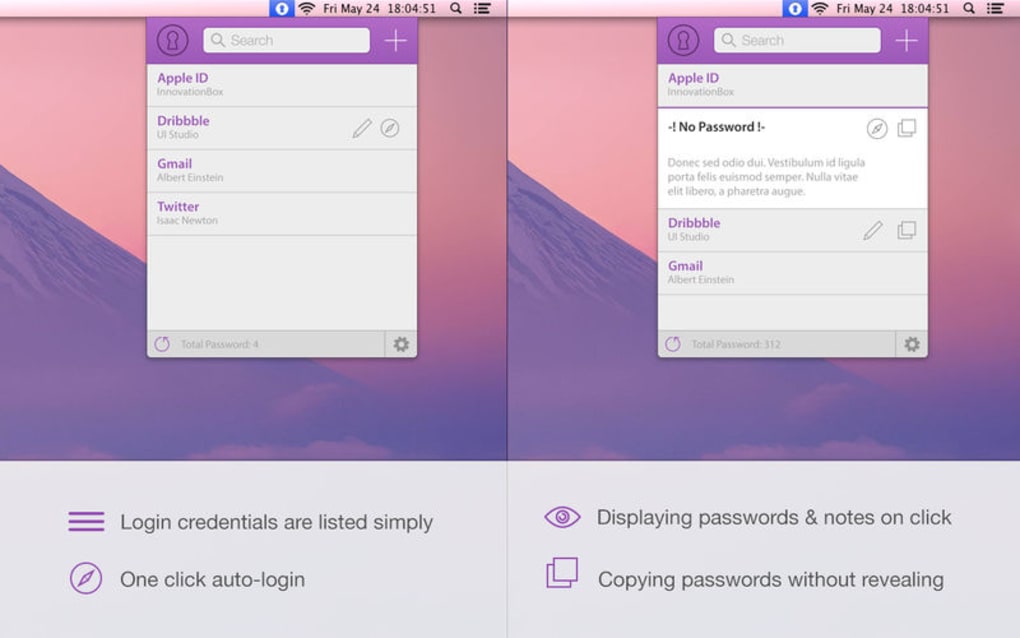
- Auto‑Fill & Keyboard Shortcuts: Quickly populate login fields on browsers and apps without exposing passwords.
- Password‑Protected ZIP Creation: Generate encrypted archives directly from the app for safe file sharing.
- Import/Export Capabilities: Move data from other password managers or export your vault for offline storage.
- Secure Notes Section: Store sensitive information such as recovery keys, PIN codes, or personal identifiers.
- Two‑Factor Ready: Supports integration with external authenticator apps for an added layer of security.
- Customizable UI: Light and dark themes plus adjustable font sizes for comfortable usage in any environment.
- Frequent Updates: Regular security patches and feature enhancements keep the app up‑to‑date with the latest standards.
Each of these features is designed with a specific user pain point in mind. For example, the auto‑fill function eliminates the tedious habit of copying passwords to the clipboard—a practice that can expose data to malicious clipboard‑monitoring apps. The cloud sync option, meanwhile, addresses the common worry of losing access if a device is lost or broken. By storing encrypted copies in the cloud, PassLocker ensures that you can recover your vault on a new device simply by logging in with your master password.
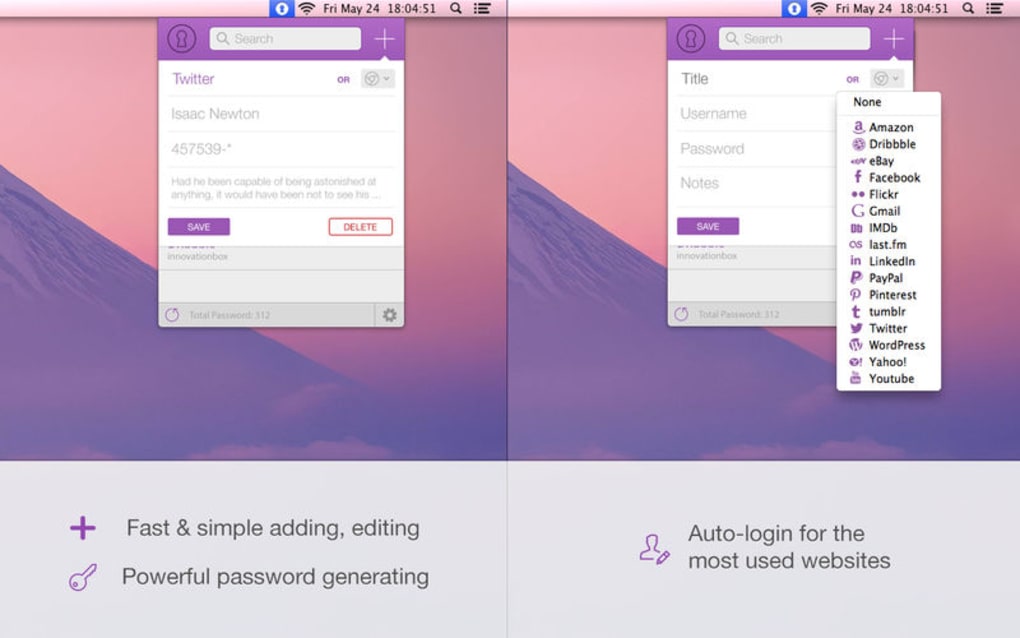
Another benefit worth highlighting is the password‑generator tool. With a single click, you can create complex, unique passwords that meet the requirements of any website or service, reducing the temptation to reuse passwords across multiple accounts. The generated passwords can be saved directly into the vault, eliminating the need for manual entry. This not only saves time but also enforces best practices for password hygiene.
From a privacy perspective, PassLocker follows a “zero‑knowledge” policy. The developers have no access to your master password, and all encryption keys are derived locally on your device. This approach aligns with the expectations of privacy‑conscious users and complies with regulations such as GDPR for European customers.
Installation & Usage Instructions
Getting started with PassLocker is straightforward, regardless of whether you are on a desktop computer or a mobile device. Below is a step‑by‑step guide that covers download, installation, initial setup, and everyday usage.
Desktop (Windows & macOS)
- Visit the official PassLocker website or a trusted app store and click the “Download” button for your operating system.
- Run the installer (PassLockerSetup.exe for Windows or PassLocker.dmg for macOS) and follow the on‑screen prompts. The installer will request permission to create a shortcut on your desktop and to add the app to your startup items—accept these to enable quick access.
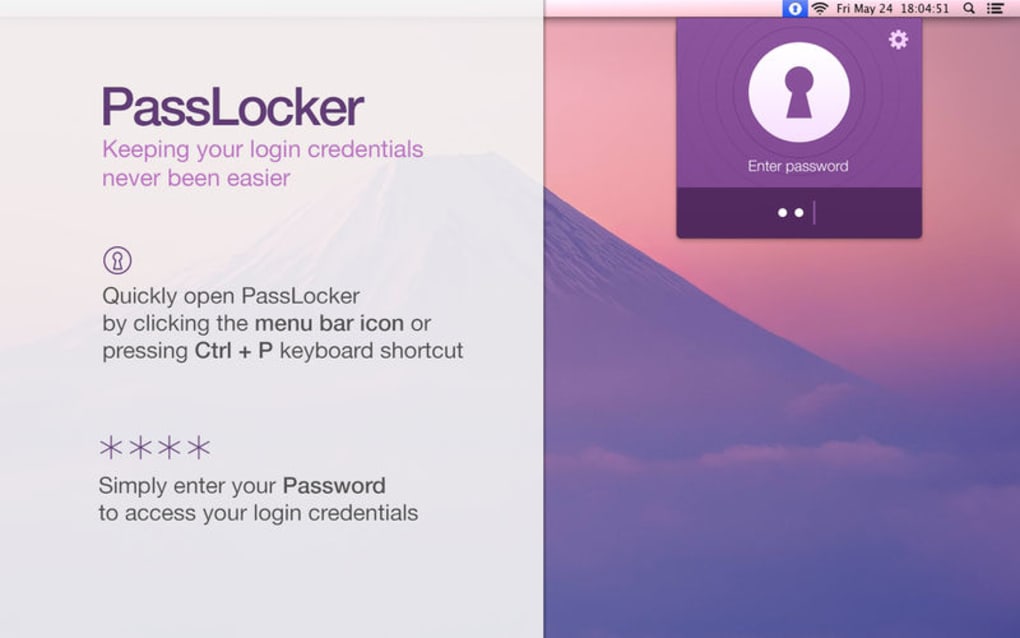
- Launch PassLocker for the first time. You will be prompted to create a master password. Choose a strong, memorable phrase; this password is the only key to decrypt your vault.
- Optionally enable biometric login (Windows Hello, Touch ID, or Face ID) for faster access while retaining security.
- Navigate to the “Settings” tab to connect your preferred cloud storage service. Sign in to Dropbox or iCloud, and grant PassLocker permission to create a dedicated encrypted folder.
- Begin adding entries by clicking the “+” icon. Fill in the website URL, username, password, and any notes. Use the built‑in password generator for maximum strength.
- To auto‑fill credentials in browsers, install the PassLocker browser extension (available for Chrome, Firefox, Edge, and Safari). Once installed, the extension will communicate securely with the desktop app to retrieve encrypted data.
Mobile (Android & iOS)
- Open Google Play Store or Apple App Store, search for “PassLocker,” and tap “Install.”
- After installation, open the app and create the same master password you used on your desktop for seamless synchronization.
- Allow the app to access your device’s secure storage and, if desired, enable fingerprint or Face ID authentication.
- Connect to your cloud provider in the “Sync” section to keep your vault updated across devices.
- Use the “Add Entry” button to store new credentials. The mobile UI includes a QR‑code scanner for quickly importing passwords from other managers.
- Enable the “Auto‑Fill” service in your device’s accessibility settings. This lets PassLocker fill login fields in native apps and mobile browsers with a single tap.
Once your vault is populated, everyday usage is as simple as searching for a site name in the main window, tapping the entry, and selecting “Copy Password” or “Auto‑Fill.” For power users, keyboard shortcuts such as Ctrl+Shift+P (Windows) or ⌘+Shift+P (macOS) open the quick‑search dialog, allowing you to retrieve credentials without leaving your current workflow.
PassLocker also includes a “Secure Export” option that creates a password‑protected ZIP file of your entire vault. This feature is useful for offline backups or for migrating to another password manager that supports encrypted imports.
Compatibility, Pros & Cons
Supported Operating Systems: Windows 10 and later, macOS 10.14 (Mojave) and later, Android 8.0+ (APK), iOS 13+.
Pros
- Military‑grade 256‑bit AES encryption ensures data confidentiality.
- True cross‑platform sync via Dropbox, iCloud, or manual file import.
- Zero‑knowledge architecture—developers never see your master password.
- Built‑in password generator and secure notes for comprehensive data protection.
- Keyboard shortcuts and browser extensions speed up daily workflows.
- Free core version with optional premium add‑ons for advanced features.
Cons
- Premium features (e.g., dark theme sync, advanced biometric options) require a paid subscription.
- No built‑in password breach monitoring; users must rely on third‑party services.
- Initial setup can be slightly confusing for non‑technical users unfamiliar with cloud sync.
PassLocker delivers a compelling mix of high‑level encryption, intuitive design, and reliable cloud sync. While the free tier covers most everyday needs, power users may appreciate the premium add‑ons for added customization. Overall, it’s a solid choice for anyone serious about protecting their digital identities.
Frequently Asked Questions
-
Is PassLocker really free?
PassLocker offers a fully functional free version that includes encryption, cloud sync, password generation, and auto‑fill. Premium features such as advanced biometric options, priority support, and additional themes are available through a subscription.
-
How does PassLocker store my master password?
The master password never leaves your device. PassLocker uses a key‑derivation function (PBKDF2) to create an encryption key locally, ensuring a zero‑knowledge architecture where even the developers cannot access your credentials.
-
Can I import passwords from other managers?
Yes. PassLocker supports CSV and JSON imports from popular password managers such as LastPass, 1Password, and Bitwarden. The import wizard guides you through mapping fields and encrypting the data during the process.
-
Is my data safe if the cloud provider is compromised?
Absolutely. All vault data is encrypted locally before it is uploaded. The cloud provider only stores ciphertext, which is indecipherable without your master password. This end‑to‑end encryption model protects you even in the event of a cloud breach.
-
What platforms does PassLocker support?
PassLocker runs on Windows 10/11, macOS 10.14+, Android 8.0+, and iOS 13+. The application also provides browser extensions for Chrome, Firefox, Edge, and Safari, ensuring seamless integration across desktop and mobile environments.
Conclusion & Call to Action
In a world where data breaches are becoming increasingly common, having a reliable password manager is no longer optional—it’s essential. PassLocker stands out by offering top‑tier 256‑bit AES encryption, true cross‑platform sync, and a user‑friendly interface that balances security with convenience. While the free tier already covers most daily needs, the optional premium upgrade adds refined features for power users. Whether you are a casual internet user, a small‑business owner, or an IT professional, PassLocker provides the tools you need to protect your digital identity without sacrificing speed or usability.
If you’re ready to take control of your passwords and enjoy peace of mind, download PassLocker today. Install it on your laptop, sync it with your mobile device, and experience the confidence that comes with industry‑grade encryption at your fingertips.







